This guide walks through every feature of the ExifSortPro GUI, screen by screen.
Contents
- Launching and first run
- Adding sources
- Destination and template
- Presets
- Preview and per-row override
- Run / cancel / log
- Error summary and retry
- History and Undo
- Gear aliases
- Retention and DB size
- Performance settings (parallelism / cache / cloud)
- Switching language
- CLI reference
- Cloud destinations
- Troubleshooting
1. Launching and first run
Requirements
| OS | macOS 12 Monterey or later |
| CPU | Apple Silicon and Intel — shipped as a single universal2 build |
| Network | Not required; everything runs locally on your Mac |
From the DMG (recommended)
- Download
ExifSortPro-0.1.0-beta4.dmgand open it - In the install panel that appears, drag ExifSortPro.app onto the Applications folder
- Drag the mounted disk image to the Trash to eject it
- Launch ExifSortPro from /Applications
The build is signed with an Apple Developer ID and notarized by Apple, so it opens with a normal double-click and shows no security warning.
Still see "App can't be opened because it is from an unidentified developer"?
The download is probably incomplete — fetch the DMG again first. If you need to get going immediately, in Finder right-click ExifSortPro.app → Open, then click "Open" in the confirmation dialog.
Launched the .app from inside the DMG by mistake?
ExifSortPro detects this and shows a dialog ("ExifSortPro is running from a disk image"). It refuses to start so you don't end up with stale settings on a read-only volume. Drag the .app to /Applications and relaunch from there.
From source
exifsort-gui
First-run setup
On first launch, ~/.exifsort/manifest.sqlite3 is created. All state —
history, presets, aliases, settings — lives in that one SQLite file.
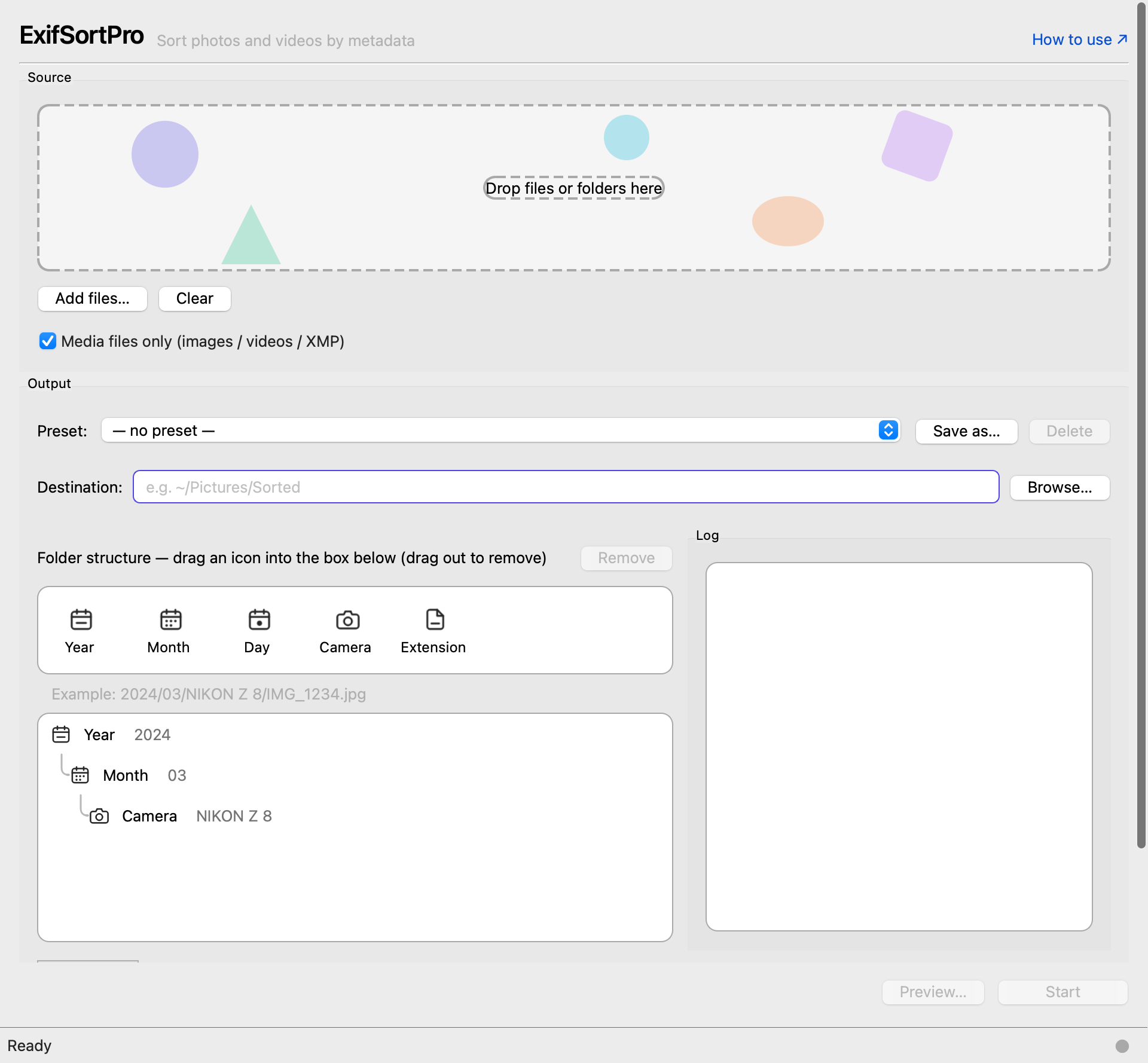
The main window on first launch
2. Adding sources
Drag folders or files onto the Source drop area, or click "Add files…".
Scan options:
- Media files only (default ON) — accept only photos, videos, and XMP
sidecars; skip database / cache files. macOS package bundles such as
.photoslibraryare always treated as a single opaque file — their contents are never traversed.
Item count: a live Folders: N Files: M summary appears next to the
"Add files…" / "Clear" buttons whenever the source list is non-empty.
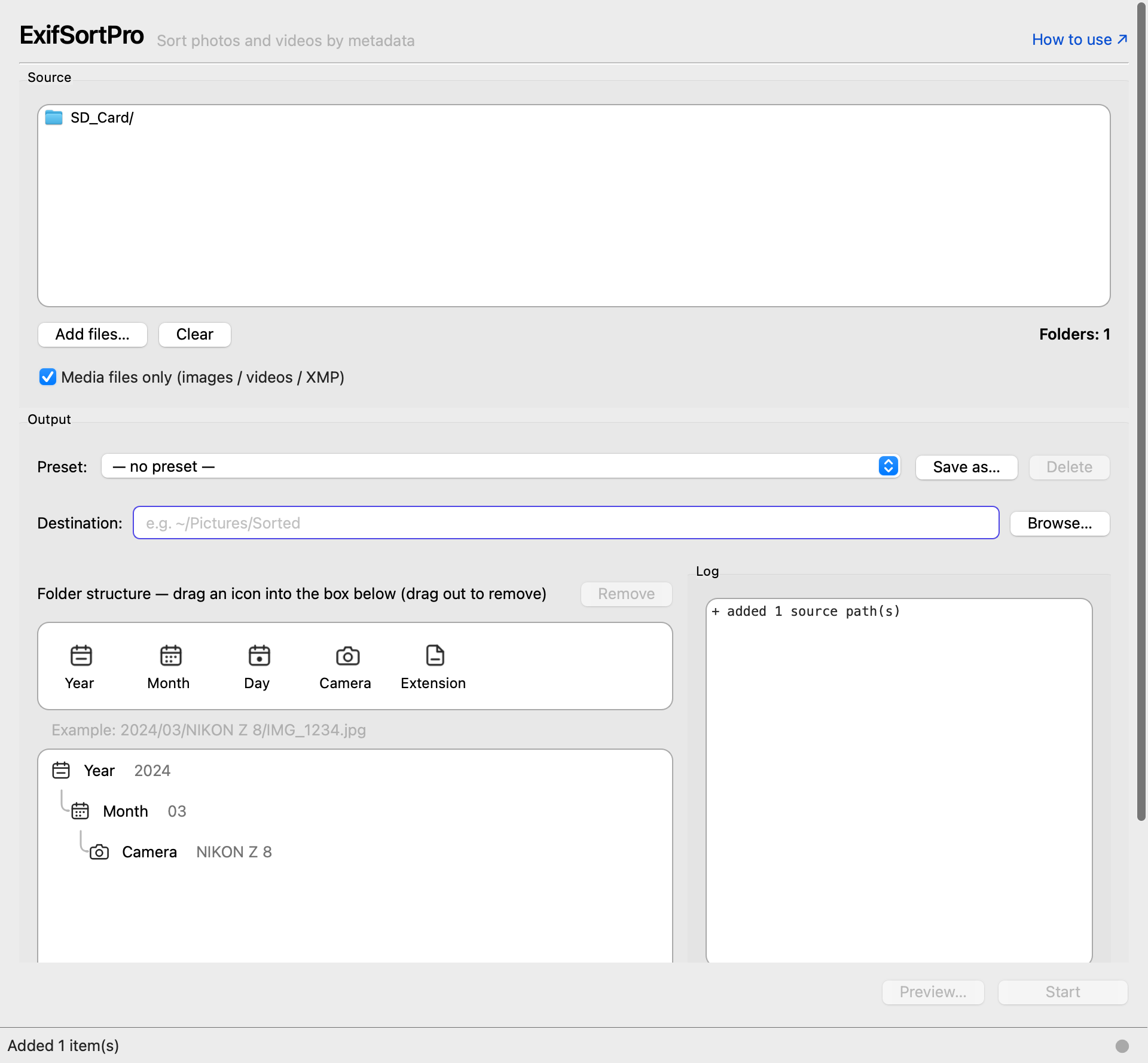
After adding a folder
3. Destination and template
Set Destination to the root folder for the sorted tree.
The Template is a path expression with / between levels, e.g.
{year}/{month}/{camera}.
Available variables:
| Variable | Example (ja) | Example (en) | Notes |
|---|---|---|---|
{year} {month} {day} |
2024年/03月/15日 |
2024/03/15 |
Capture date — locale-aware (see 12. Switching language) |
{hhmm} |
1030 |
1030 |
Capture time HHMM |
{month_name} {month_abbr} |
March, Mar |
March, Mar |
English month name (not locale-aware) |
{weekday} {weekday_abbr} |
Friday, Fri |
Friday, Fri |
English weekday (not locale-aware) |
{camera} |
NIKON Z 8 |
NIKON Z 8 |
Camera model |
{lens} |
NIKKOR Z 24-70mm |
NIKKOR Z 24-70mm |
Lens model |
{ext} |
jpg |
jpg |
Lowercased extension |
RAW + JPG and XMP travel together.
DSC_0001.NEF, DSC_0001.JPG and the develop-settings sidecar DSC_0001.xmp,
when they sit in the same folder under the same name, are treated as one group
and copied to the same destination. If a name is already taken and the copy is
renamed, every member of the group takes the same number, so _copy1 never
lands on one file and not the other.
- A sidecar is matched when it is in the same folder and named by replacing
the extension (
DSC_0001.xmp). The append-style nameDSC_0001.NEF.xmp(darktable and friends) is treated as a separate file - ⚠️ A template containing
{ext}turns this grouping off. "Split by extension" and "keep them together" cannot both hold..NEFand.JPGgo to their own extension folders and.xmpgoes to anxmpfolder. If you want the RAW and its develop settings side by side, don't use{ext}
The UI offers fewer variables than the table above lists.
| Where | Variables offered |
|---|---|
| Folder-structure icons (drag) | {year} {month} {day} {camera} {ext} |
| Insert button menu | those, plus {month_name} {month_abbr} {weekday} {weekday_abbr} {hhmm} |
| Typed into the template field | everything in the table, {lens} included |
The shortlist exists because the rest tend to produce folders that are harder
to live in, not easier. Almost nobody files by weekday; {hhmm} gives you a
new folder every minute; and lens names like XF16-55mmF2.8 R LM WR make
unwieldy directory names.
Nothing was removed from the engine, though. Type a template containing
{lens} and it works, and presets you saved earlier keep working.
The Insert button drops variables into the template field. The
required / separator is auto-inserted when the cursor is adjacent to
existing content — no more accidental {year}{month} runs from forgetting
a slash. A live "Example: ..." preview is shown below the template,
rendered against sample metadata.
When the source and destination overlap: if you, e.g., point the
destination at /Volumes/SDCARD/Sorted/ while sourcing /Volumes/SDCARD/,
ExifSortPro opens a confirm dialog warning that the data will roughly double
on the same disk and asking you to confirm before proceeding (defaults to
Cancel). This is an opt-in for legitimate use cases like sorting a memory
card without an external drive attached. Identical source/destination paths
are still always blocked.
If destination exists:
- Rename — save alongside as
IMG_1234_copy1.jpg,IMG_1234_copy2.jpg, … (default) - Skip — leave the destination alone
- Overwrite — replace
- Error — mark the row as failed
Sorting the same folder twice is decided by this setting. On the second run, photos already in the destination are matched by content — size plus a content hash, not just the filename — and reported as duplicates.
| Setting | What a second run does |
|---|---|
| Rename (default) | Writes another copy of each photo with a _copy1 suffix. Disk usage doubles |
| Skip | Nothing happens; the destination is left as it is |
If your habit is to re-insert the card and run again just to be sure, switch this to Skip. The default is Rename because it never loses anything: two different files that happen to share a name both survive, and a surplus copy is easier to recover from than a missing original.
And if you do end up with extras, 8. History and Undo undoes that whole run. Your originals were never touched, so only the extra copies go away.
Fast mode (skip post-copy verification):
When ON, ExifSortPro skips the post-copy SHA256 verify and finishes faster. APFS local copies essentially never corrupt, so this is a reasonable speed win for most users. Leave OFF for the highest reliability. The default state of this checkbox is configurable from Settings → Performance… (see 11. Performance settings).
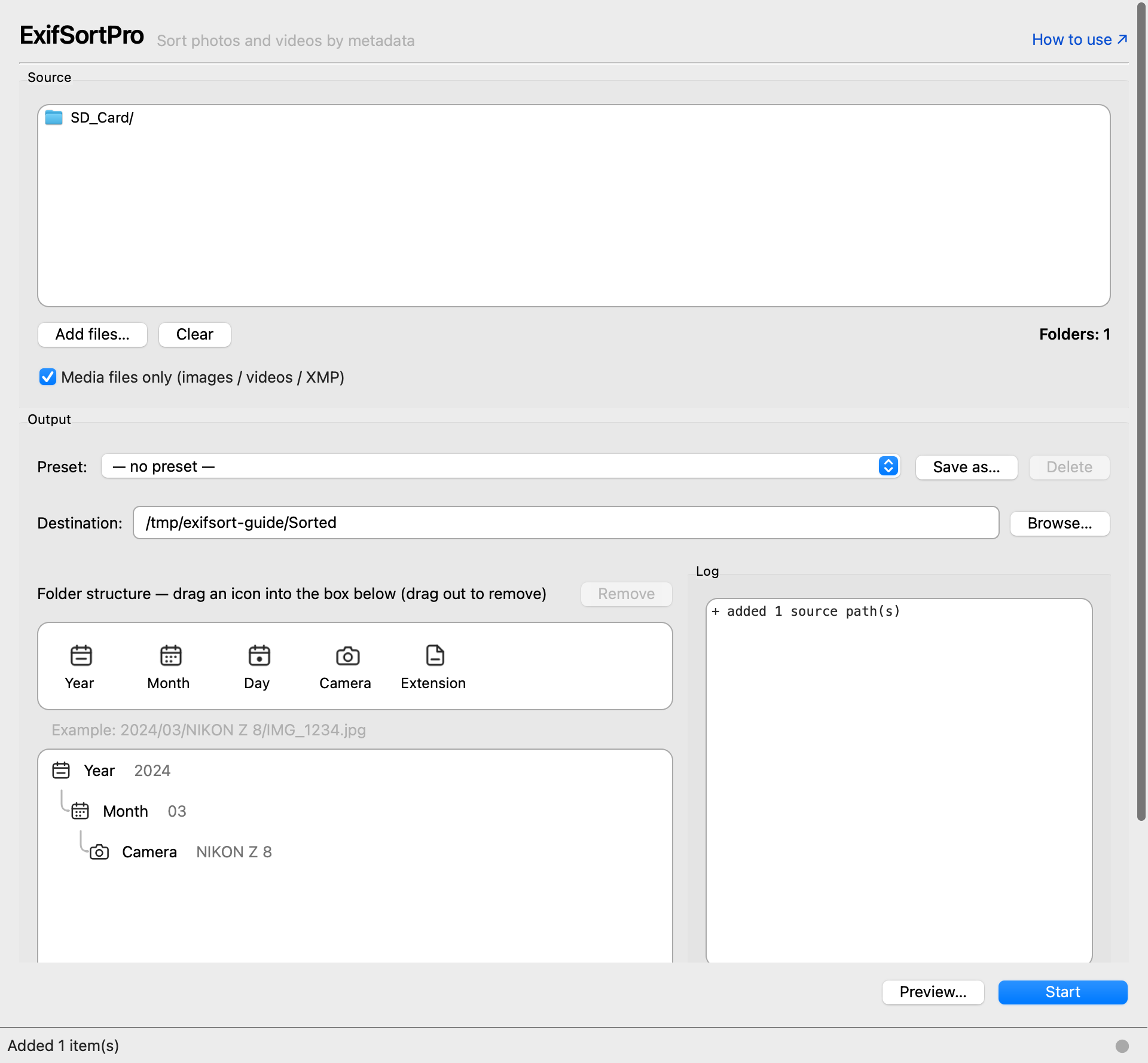
Destination and folder structure set
4. Presets
Save and reuse common settings.
Built-in presets:
- By date —
{year}/{month}/{day} - By camera —
{camera} - By date and camera —
{year}/{month}/{camera}
User presets:
- "Save as…" captures the current settings under a name
- "Delete" removes a user preset (built-ins cannot be deleted)
A preset bundles the template, the on-exists policy, and the fallback strings for missing date / camera / lens.
5. Preview and per-row override
Click "Preview…" to see every planned source → destination row.
- NEW (white) — fresh copy
- DUPLICATE (orange) — already present; the trailing dropdown lets you override the on-exists policy for that one row (Skip / Overwrite / Rename)
- ERROR (red) — metadata extraction failed, etc.
The header shows N group(s): X new, Y duplicate(s), Z error(s).
Click "Start sort" to commit, or "Cancel" to back out.
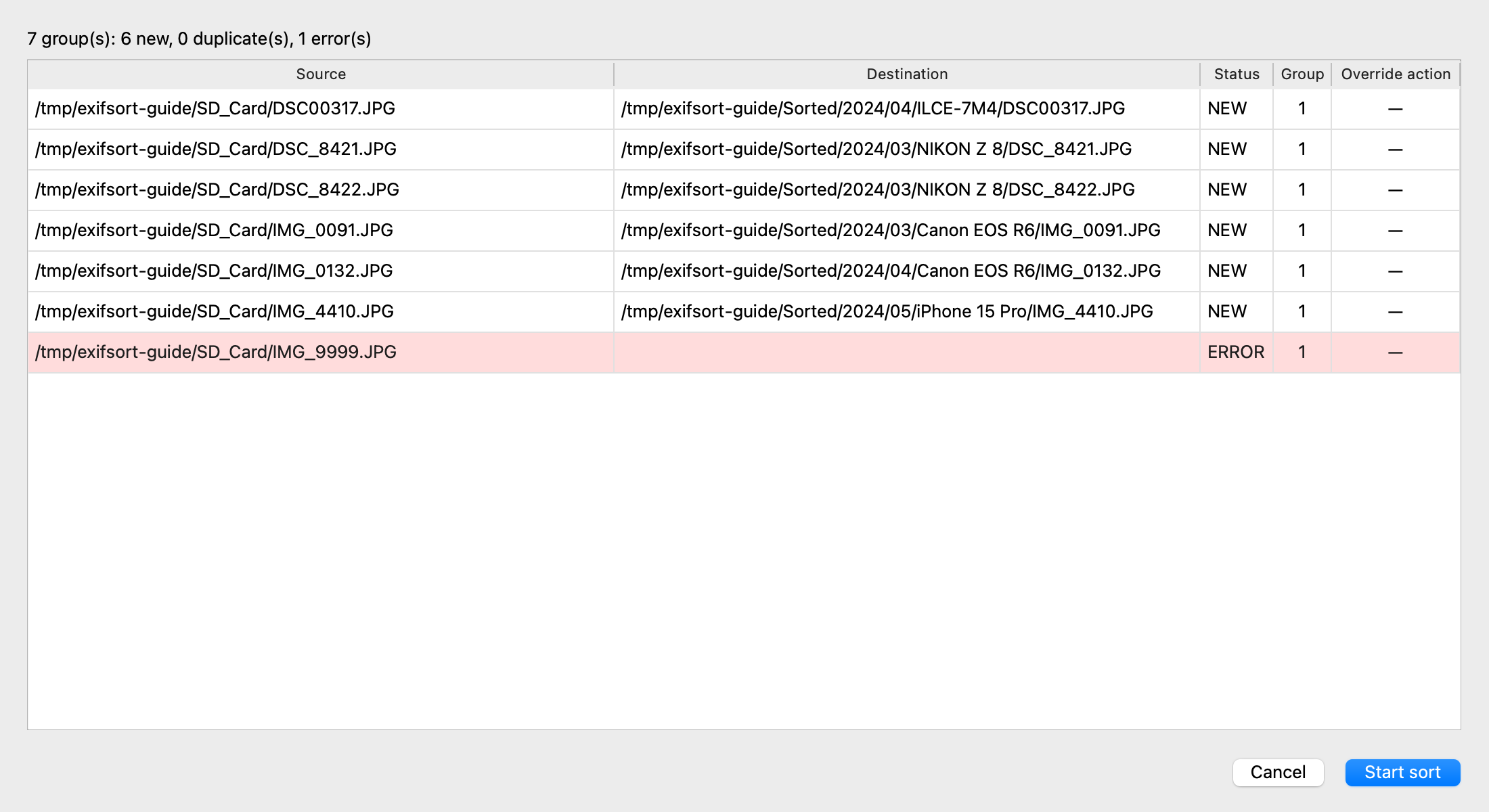
The preview — every file's destination before anything is written
6. Run / cancel / log
Click "Start" to begin. A progress bar and current-file label are shown. While a run is in flight, the same button changes to "Cancel" — clicking it requests cancellation (the in-flight file finishes first, the button shows "Cancelling…", then the run stops).
When cancelled, files already copied are kept in place and the session is
recorded with status interrupted in the manifest, so you can still Undo it
later.
Closing the window mid-run does the same thing: it counts as a cancellation request, and the app waits for the in-flight file to finish before the window goes away. If a large video is being copied, the window may linger for a few seconds — that is not a hang. Nothing is force-quit: the session is recorded properly and stays undoable.
The log pane prints [n/total] per file with the action taken. The small
coloured dot on the right side of the status bar indicates the run state at
a glance: idle / running / done / failed / cancelled.
End-of-run "non-normal copies" recap: if any file was renamed,
overwritten, skipped, or failed during the run, the log automatically ends
with a --- Files not copied normally (N) --- block listing each one with
its destination (or error). You don't have to scroll through hundreds of
COPIED lines to find which files got the _copy1 suffix.
7. Error summary and retry
If any files failed, the error summary dialog opens automatically when the run finishes.
- One row per failure (source path / error message)
- "Retry" on a single row, or "Retry all" to re-run only the failures
- CSV / JSON export for handing the failure list off to other tools
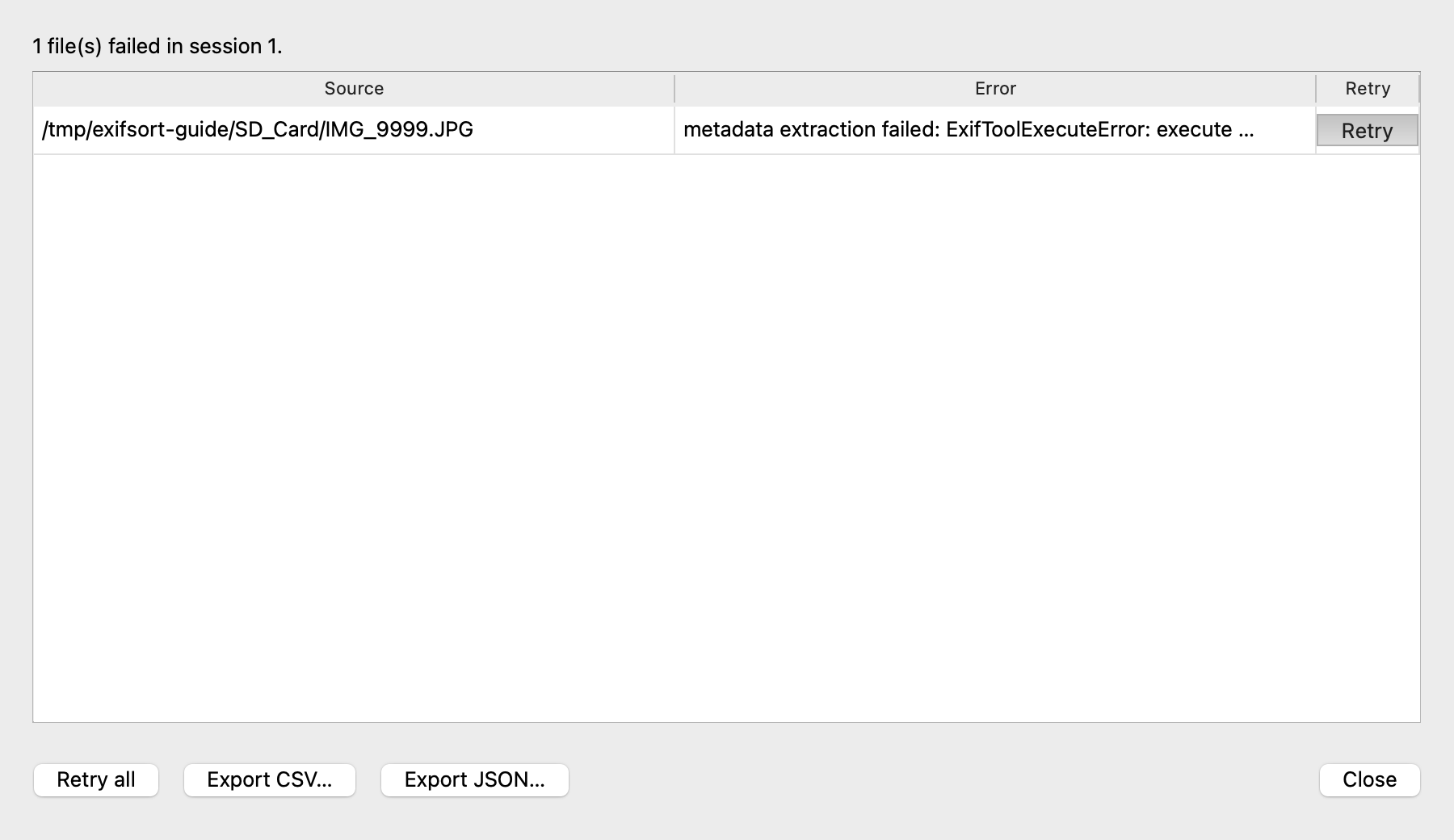
Files that could not be read, with per-file retry
8. History and Undo
Open with menu History → Sessions….
- Top table: session ID / start time / status / entry count / source → dest
- Selecting a session populates the bottom table with its entries
- "Roll back…" undoes the selected session by deleting the copies it created
Safety:
- Hash check — files that were modified after the copy are skipped during
rollback (configurable on the CLI via
--no-verify-hash; always on in the GUI) - Originals are never touched (we only ever copy)
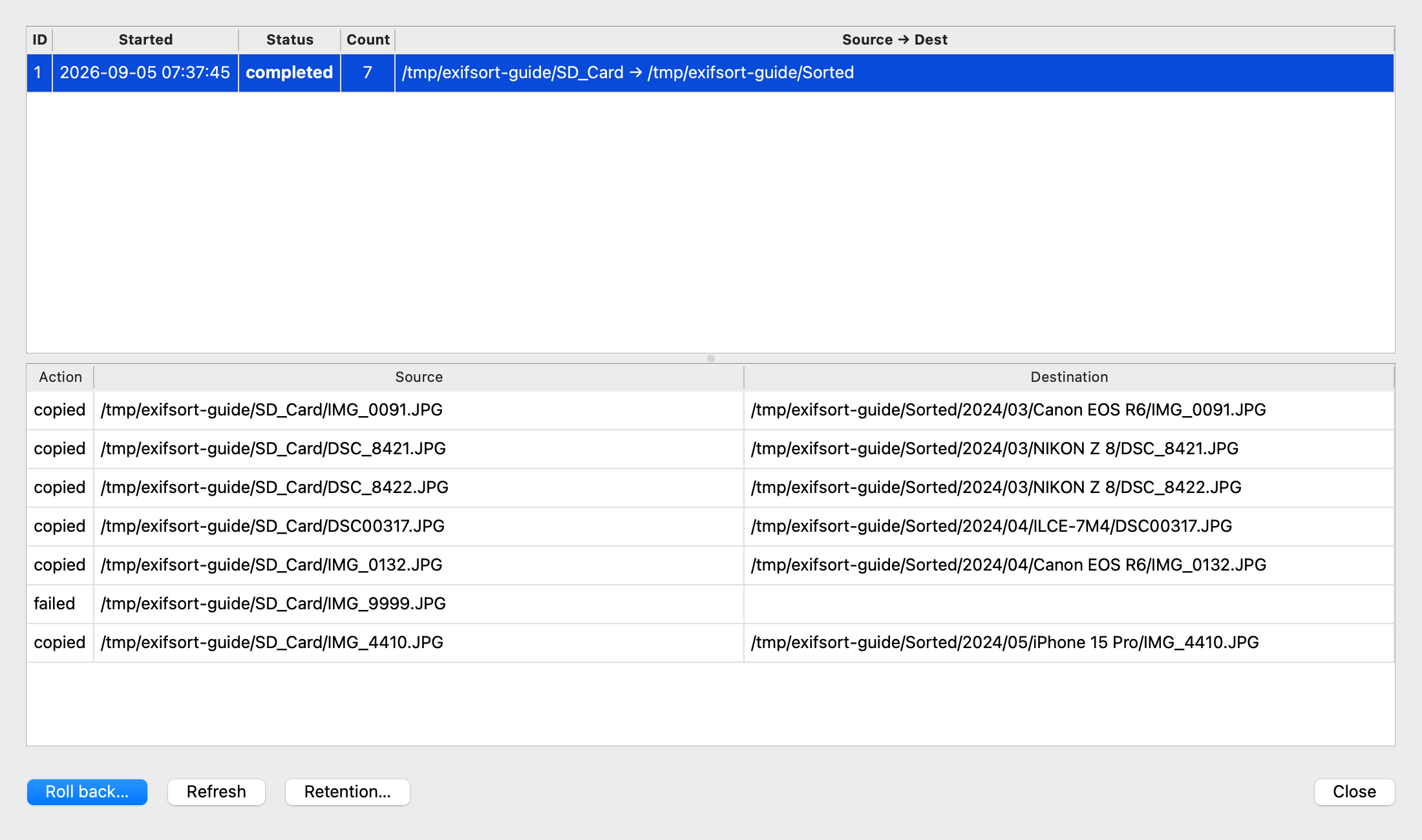
History. Select a session to list its actions, or roll it back
9. Gear aliases
A normalization dictionary for noisy EXIF labels.
Open with menu Settings → Gear aliases….
Examples:
| Raw name | Normalized | Kind |
|---|---|---|
NIKON CORPORATION NIKON Z 8 |
Z8 |
camera |
NIKKOR Z 24-70mm f/2.8 S |
Z 24-70 f2.8 |
lens |
The normalized form is what {camera} / {lens} substitute into the path.
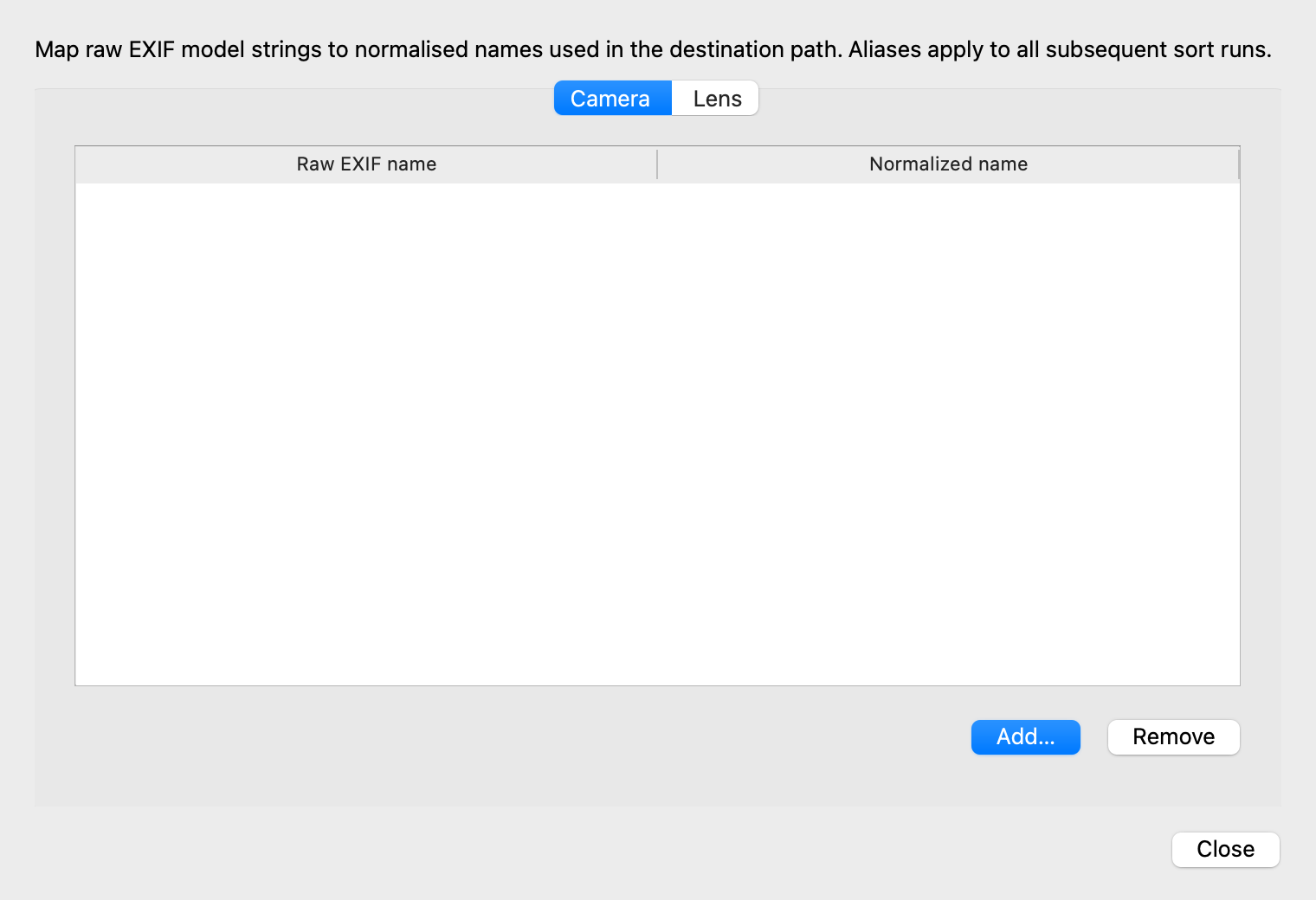
Gear name aliases
10. Retention and DB size
The History dialog's "Retention…" button controls how long sessions are kept.
- Default: 30 days (old sessions auto-purged at startup)
0: keep forever
To keep the DB from growing without bound under "forever" retention:
- Usage display — the Retention prompt shows
Current: N session(s), M entries, X.X MB - Soft warning — when retention is "forever" and the DB exceeds 200 MB, a follow-up dialog offers a one-shot trim by age. Accepting deletes sessions older than the chosen number of days without changing the saved retention setting (so "forever" stays in effect for new runs).
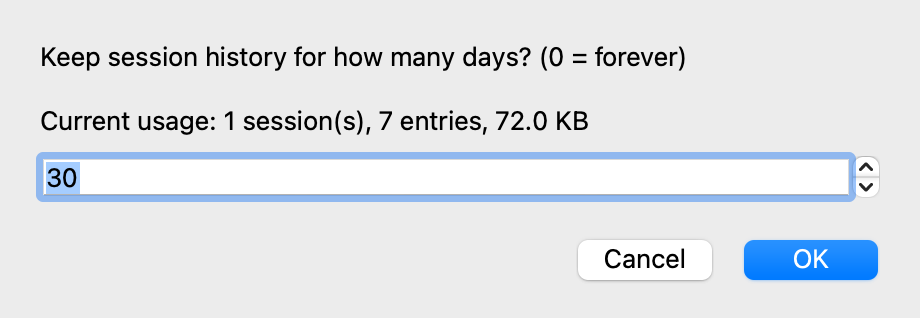
The dialog behind "Retention…" — it shows what the history is costing you before you pick a number of days
11. Performance settings (parallelism / cache / cloud)
Open from menu Settings → Performance…. All preferences are persisted
via QSettings and survive across launches.
Parallelism:
- Metadata extraction workers — number of parallel ExifTool subprocesses.
"Auto" (value
0) picksmin(4, cpu_count // 2). More is faster on huge libraries but uses more CPU. - Hash + copy workers — concurrent threads hashing and copying files. "Auto" picks the same default. SSDs benefit; spinning disks may not.
Behaviour:
- Default to Fast mode (skip post-copy verification) — when ON, the main window's Fast-mode checkbox starts pre-checked on every launch (see 3. Destination and template).
- Enable metadata cache — caches extracted metadata keyed by
(path, mtime, size). The 2nd and later runs over the same source skip ExifTool entirely. Automatically invalidated when a file is edited.
iCloud / cloud-sync placeholders:
Photos under iCloud's "Optimize Mac Storage" (and Dropbox / OneDrive / Google Drive equivalents) leave only a tiny stub on disk. Pick how ExifSortPro should react to those placeholders on the source side:
- Warn and skip (recommended) — log a warning, skip the file, keep going. Counted in the summary so you can re-run later (default).
- Download and wait — ask macOS to materialise the file (
brctl) and then process it. Slow on metered connections; safe for archive runs. - Fail the run — abort the entire sort the moment a placeholder appears. Use when partial results are unacceptable.
For caveats about pointing the destination at a cloud-synced folder, see 14. Cloud destinations.
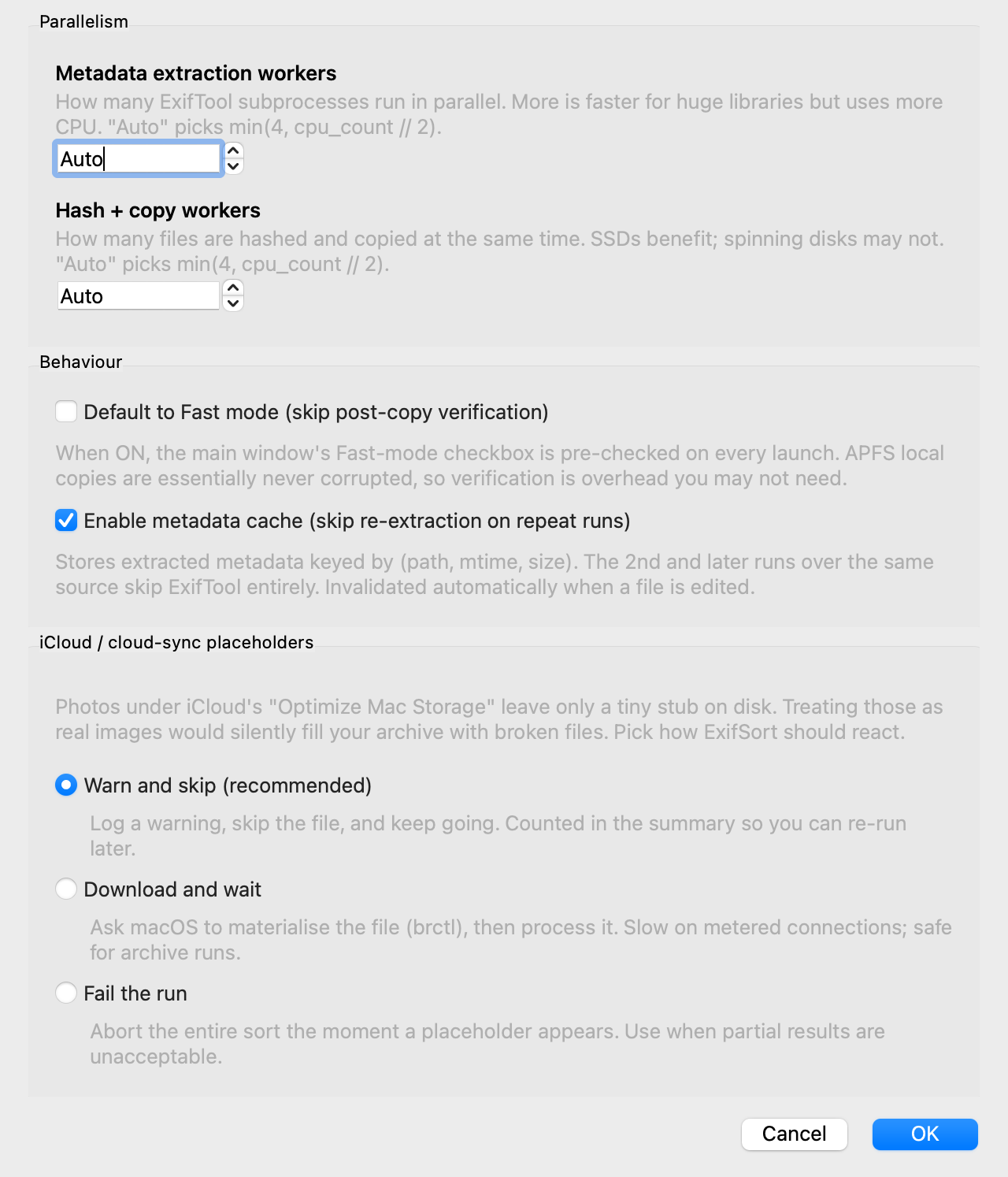
Performance settings
12. Switching language
Menu Settings → Language → 日本語 / English.
- The choice is persisted via
QSettings(~/Library/Preferences/com.ExifSort.ExifSort.plist) - Takes effect on next launch — the dialog tells you to restart
Resolution order: EXIFSORT_LANG env var > GUI setting > default (Japanese).
The language setting also affects the destination tree. In Japanese,
{year}/{month}/{day} expands to 2024年/03月/15日; in English, it stays
as plain 2024/03/15 (see 3. Destination and template).
If you switch languages partway through a project, subsequent runs will
build a parallel tree with the new naming — the old 2024/03/15 tree won't
be migrated automatically.
13. CLI reference
exifsort sort SOURCE DEST [options]
exifsort sessions list [--limit N]
exifsort sessions show SESSION_ID
exifsort sessions purge [--days N]
exifsort sessions retention [N]
exifsort sessions export SESSION_ID --format csv|json --output FILE
exifsort sessions rollback SESSION_ID [--no-verify-hash] [--keep-empty-dirs]
exifsort aliases list [--kind camera|lens]
exifsort aliases add KIND RAW NORMALIZED
exifsort aliases remove KIND RAW
Key sort options:
| Option | Notes |
|---|---|
--template TEMPLATE |
Path template |
--preset NAME |
Load a preset's settings |
--save-preset NAME |
After running, save these settings as a preset |
--on-exists {error,skip,overwrite,rename} |
Duplicate-collision policy |
--dry-run |
Plan-only; don't copy |
--no-verify |
Skip post-copy hash verification |
--include-hidden |
Don't skip dotfiles |
--include-non-media |
Disable the media-only whitelist (DB / cache files are still always excluded) |
--threshold-mb N |
File size (MB) at which sampling-hash kicks in (default 500) |
--sample-mb N |
Per-region sample size for sampling-mode hashing (default 4 MB) |
--unknown-date STR / --unknown-camera STR / --unknown-lens STR |
Fallback strings for missing metadata |
--lang {ja,en,...} |
Language for date-token rendering. ja produces 2024年/03月/15日; anything else stays as plain digits. Falls back to $EXIFSORT_LANG and finally to en (the CLI default — different from the GUI default of Japanese). |
--allow-overlap |
Permit a source/destination layout that nests one inside the other (e.g., sorting a memory card into a subfolder on the same card). Disabled by default; data on the disk roughly doubles when used. OVERLAP_EQUAL (identical paths) is still rejected even with this flag. |
--quiet |
Suppress per-file progress lines |
Parallelism, cache, and the cloud-placeholder policy are configured from the
GUI Performance dialog and stored in QSettings; the CLI honours those
values too.
14. Cloud destinations
ExifSortPro doesn't speak any cloud protocol. When the destination is a cloud-synced folder it's still treated as a plain local path — the OS's sync client (iCloud Drive, Dropbox, OneDrive, Google Drive) uploads the files asynchronously after they hit local disk.
You can point the destination at a cloud-synced folder
(~/Library/Mobile Documents/com~apple~CloudDocs/..., ~/Dropbox/...)
but the following caveats apply:
| Behaviour | What it means |
|---|---|
| Verify completes before upload does | Post-copy hash verification reads bytes off the local disk and passes immediately. It does not wait for the cloud upload. "Session completed" ≠ "everything is in the cloud". |
| Local disk fills up temporarily | iCloud Drive / Dropbox "optimised storage" still writes the full file to disk first and uploads afterwards. A 1000-file × 30 MB run consumes ~30 GB locally until the daemon catches up. |
| Conflicted copies on simultaneous edit | If another machine is also syncing the same folder, you can end up with Photos (conflicted copy 2026-04-30).jpg files. Run from one machine at a time. |
| Undo can be slow | If iCloud Drive's "Optimize Mac Storage" reclaims a copy after upload, undoing the sort needs to download the file back over the network. |
Source-side cloud-only files are handled separately. If your source contains placeholders from iCloud / Dropbox / OneDrive / Google Drive, the Settings → Performance… → "iCloud / cloud-sync placeholders" section controls the behaviour (default: warn and skip; see 11. Performance settings for the full description of each option).
15. Troubleshooting
ExifTool not found
→ The DMG build ships ExifTool inside the bundle
(ExifSortPro.app/Contents/Resources/resources/exiftool/macos/exiftool), so
you should never see this. If you do, the app is likely damaged — download the
DMG again. Running from source does require brew install exiftool.
"Unidentified developer" warning on launch
→ The build is signed and notarized, so this should not appear. The download
is probably damaged — fetch the DMG again. To get going immediately,
right-click → Open in Finder, or go to
System Settings → Privacy & Security → Open Anyway.
Full Disk Access prompt
→ macOS asks for this when accessing ~/Pictures etc. Approve under
System Settings → Privacy & Security → Full Disk Access.
Japanese text shows as boxes (☐) → Rare on macOS. ExifSortPro pins Hiragino Sans explicitly; verify the system Hiragino installation.
History dialog is slow → Past a few thousand sessions, the dialog gets sluggish. Set a retention period via "Retention…", or under "forever" retention accept the soft warning's one-shot trim (see 10. Retention and DB size).
Files remain after Undo
→ Files modified after the copy are skipped (hash mismatch). On the CLI you
can force deletion with --no-verify-hash.